> ## Documentation Index
> Fetch the complete documentation index at: https://docs.blaxel.ai/llms.txt
> Use this file to discover all available pages before exploring further.
# Process execution
> Execute shell commands, retrieve process information, stream output, and control process lifecycle in Blaxel sandboxes using the SDK.
Execute and manage processes in your sandboxes with Blaxel SDK. Run shell commands, retrieve process information, and control process execution.
Complete code examples demonstrating all operations are available on Blaxel's GitHub: [in TypeScript](https://github.com/blaxel-ai/sdk-typescript/tree/main/tests/sandbox), [in Python](https://github.com/blaxel-ai/sdk-python/tree/main/tests/integration/sandbox), and [in Go](https://github.com/blaxel-ai/sdk-go/tree/main/integration_tests).
## Execute processes and commands
The Blaxel SDK requires two environment variables to authenticate:
| Variable | Description |
| -------------- | -------------------------- |
| `BL_WORKSPACE` | Your Blaxel workspace name |
| `BL_API_KEY` | Your Blaxel API key |
You can create an API key from the [Blaxel console](https://app.blaxel.ai/profile/security). Your workspace name is visible in the URL when you log in to the console (e.g. `app.blaxel.ai/{workspace}`).
Set them as environment variables or add them to a `.env` file at the root of your project:
```bash theme={null}
export BL_WORKSPACE=my-workspace
export BL_API_KEY=my-api-key
```
The Blaxel SDK does not accept credentials as constructor arguments. Credentials must come from environment variables, a `.env` file, or a local CLI login session (see below).
When developing locally, you can also **log in to your workspace with Blaxel CLI** (as shown above). This allows you to run Blaxel SDK functions that will automatically connect to your workspace without additional setup. When you deploy on Blaxel, authentication is handled automatically — no environment variables needed.
### Execute command
Execute shell commands:
```typescript TypeScript theme={null}
import { SandboxInstance } from "@blaxel/core";
const sandbox = await SandboxInstance.get("my-sandbox");
// Execute command
const process = await sandbox.process.exec({
command: "echo 'Hello, World!'"
});
```
```python Python theme={null}
from blaxel.core import SandboxInstance
sandbox = await SandboxInstance.get("my-sandbox")
# Execute command
process = await sandbox.process.exec({
"command": "echo 'Hello, World!'"
})
```
Logs for a [process](/Sandboxes/Processes) are available in the *process execution* object **if** the process is started with the `waitForCompletion: true` / `"wait_for_completion": True` parameter.
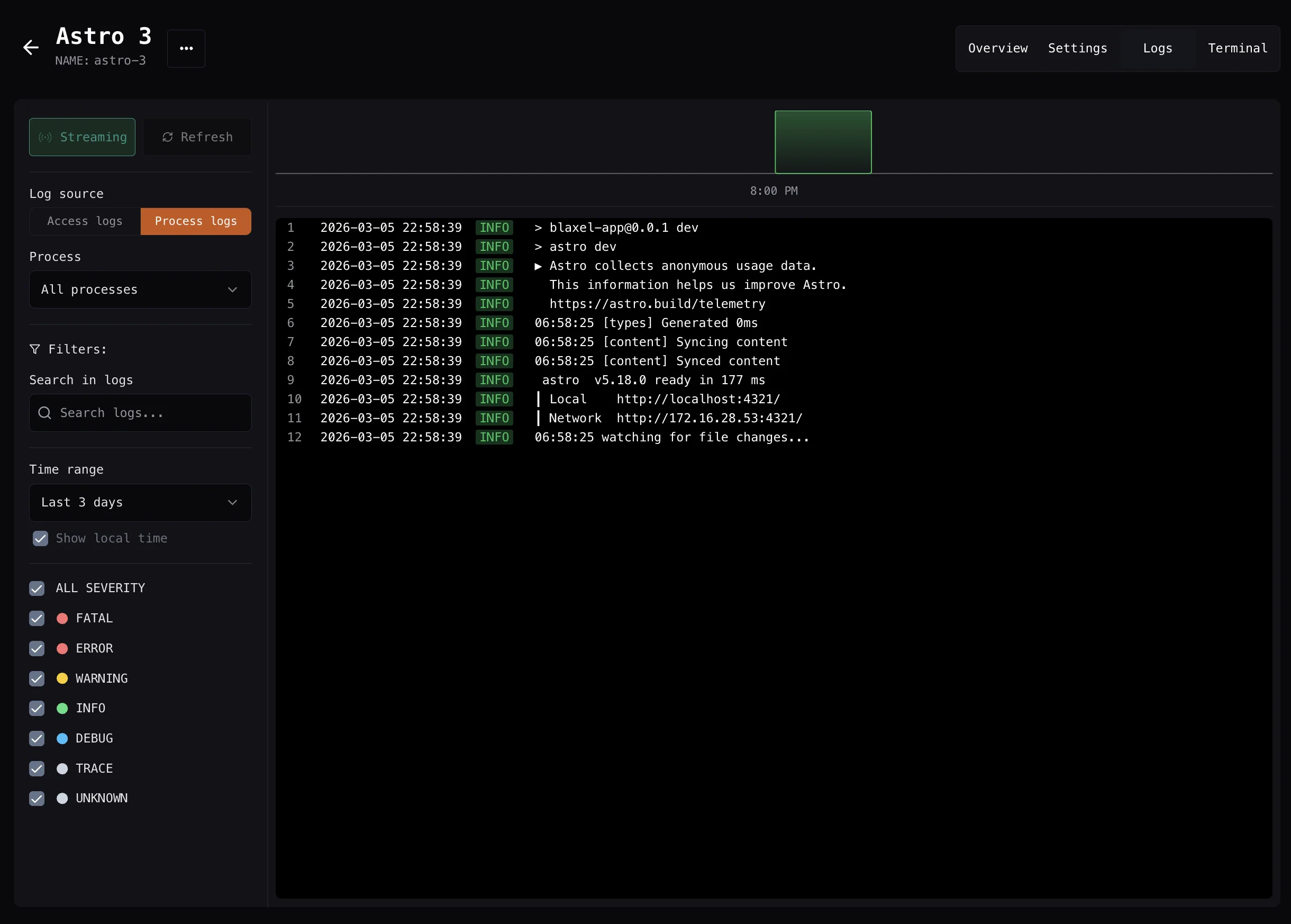
Process execution logs are also visible in the Blaxel Console. Refer to the **Logs** section of the sandbox detail page, as shown below:
 ### Set the working directory
Set the working directory for subsequent commands:
```typescript TypeScript theme={null}
import { SandboxInstance } from "@blaxel/core";
const sandbox = await SandboxInstance.get("my-sandbox");
// Execute command
const process = await sandbox.process.exec({
workingDir: "/app",
command: "ls -al"
});
```
```python Python theme={null}
from blaxel.core import SandboxInstance
sandbox = await SandboxInstance.get("my-sandbox")
# Execute command
process = await sandbox.process.exec({
"working_dir": "/app",
"command": "ls -al"
})
```
### Use process names
When starting a process (running a command), you can specify a **process name**. This lets you interact with the process—such as retrieving logs or process information—without needing to store the process ID on your end.
```typescript TypeScript {2} theme={null}
const process = await sandbox.process.exec({
name: "hello-process",
command: "echo 'Hello, World!'"
});
const processInfo = await sandbox.process.get("hello-process");
```
```python Python {2} theme={null}
process = await sandbox.process.exec({
"name": "hello-process",
"command": "echo 'Hello, World!'"
})
process_info = await sandbox.process.get("hello-process")
```
You can use either the process name or the process ID to get information about the process:
```typescript TypeScript theme={null}
const completedProcess = await sandbox.process.get("hello-process");
if (completedProcess.status === "completed") {
// ...
}
```
```python Python theme={null}
completed_process = await sandbox.process.get("hello-process")
if completed_process.status == "completed":
# ...
```
The exit code of the process is available in the `exitCode` parameter of the process execution object returned by the `process.exec` and `process.get` methods.
You can also use the process ID or name to [retrieve logs of your processes](/Sandboxes/Log-streaming).
### Kill process
Kill a process immediately by running:
```typescript TypeScript theme={null}
await sandbox.process.kill("test")
```
```python Python theme={null}
await sandbox.process.kill("test")
```
## Long-running processes
### Wait for process completion
You can wait for process completion when executing it:
```typescript TypeScript theme={null}
const process = await sandbox.process.exec({
name: "build-process",
command: "npm run build",
waitForCompletion: true,
timeout: 60 // 60 seconds
});
```
```python Python theme={null}
process = await sandbox.process.exec({
"name": "build-process",
"command": "npm run build",
"wait_for_completion": True,
"timeout": 60 # 60 seconds
})
```
When waiting for completion, the process execution object will contain a `.logs` field with the [combined `stdout` and `stderr` output as a string](/Sandboxes/Log-streaming). Also, notice the `timeout` parameter which allows you to set the process timeout duration in seconds.
When using `waitForCompletion`, Blaxel enforces a **timeout limit of 60 seconds**. Don't set your timeout longer than this. For longer waiting periods, use the process-watching option described below.
You can also wait for a process after it has started:
```typescript TypeScript theme={null}
await sandbox.process.exec({
name: "long-task",
command: "sleep 10"
});
// Wait for completion (max 10 minutes, check every 5 seconds)
await sandbox.process.wait("long-task", {
maxWait: 600000,
interval: 5000
});
```
```python Python theme={null}
await sandbox.process.exec({
"name": "long-task",
"command": "sleep 10"
})
# Wait for completion (max 10 minutes, check every 5 seconds)
await sandbox.process.wait("long-task", max_wait=600000, interval=5000)
```
Set a long completion duration if your process is expected to take longer.
### Wait for ports
In some cases, you may want to wait for a port to be opened while running — for example if you are running `npm run dev` and want to wait for port 3000 to be open.
```typescript TypeScript theme={null}
const process = await sandbox.process.exec({
name: "dev-server",
command: "npm run dev -- --port 3000 &",
waitForPorts: [3000]
});
```
```python Python theme={null}
process = await sandbox.process.exec({
"name": "dev-server",
"command": "npm run dev -- --port 3000 &",
"wait_for_ports": [3000]
})
```
## Auto-restart
### Restart process on failure
You can restart a process if it fails, up to a maximum number of restart attempts:
```typescript TypeScript theme={null}
const process = await sandbox.process.exec({
name: "start-server",
command: "npm run dev -- --host 0.0.0.0 --port 8000",
restartOnFailure: true,
maxRestarts: 5
});
```
```python Python theme={null}
process = await sandbox.process.exec({
"name": "start-server",
"command": "uvicorn main:app --reload --host 0.0.0.0 --port 8000",
"restart_on_failure": True,
"max_restarts": 5
})
```
## Sandbox keep-alive
By default, sandboxes automatically switch to standby after a few seconds of inactivity to save resources. However, it is possible to adjust this behavior and keep the sandbox running when you launch a process, even if there isn't an active connection to it. This is typically used to keep a server running in the sandbox environment even when it is not serving requests.
You can include additional keep-alive metadata when launching a new process:
```typescript TypeScript theme={null}
import { SandboxInstance } from "@blaxel/core";
const sandbox = await SandboxInstance.get("my-sandbox");
// Start a dev server that keeps the sandbox awake
await sandbox.process.exec({
name: "dev-server",
command: "npm run dev -- --hostname 0.0.0.0 --port 3000",
keepAlive: true, // Prevents auto-standby
timeout: 3600 // Auto-kill after 1 hour
});
```
```python Python theme={null}
from blaxel.core import SandboxInstance
sandbox = await SandboxInstance.get("my-sandbox")
# Start a dev server that keeps the sandbox awake
await sandbox.process.exec({
"name": "dev-server",
"command": "npm run dev -- --hostname 0.0.0.0 --port 3000",
"keep_alive": True, # Prevents auto-standby
"timeout": 3600 # Auto-kill after 1 hour
})
```
If a `timeout` value is not specified, it defaults to 600 seconds. For processes that should run indefinitely until they complete naturally, set the `timeout` to `0`.
You can run multiple processes, and the sandbox will stay active until all of them complete:
```typescript TypeScript theme={null}
import { SandboxInstance } from "@blaxel/core";
const sandbox = await SandboxInstance.get("my-sandbox");
await sandbox.process.exec({
name: "api-server",
command: "npm run start:api",
keepAlive: true,
timeout: 3600
});
await sandbox.process.exec({
name: "worker",
command: "npm run start:worker",
keepAlive: true,
timeout: 3600
});
```
```python Python theme={null}
from blaxel.core import SandboxInstance
sandbox = await SandboxInstance.get("my-sandbox")
await sandbox.process.exec({
"name": "api-server",
"command": "npm run start:api",
"keep_alive": True,
"timeout": 3600
})
await sandbox.process.exec({
"name": "worker",
"command": "npm run start:worker",
"keep_alive": True,
"timeout": 3600
})
```
## Disable process telemetry logging
By default, process stdout and stderr are exported as structured telemetry logs (visible in external observability systems). You can disable this telemetry export by setting the `SANDBOX_DISABLE_PROCESS_LOGGING` environment variable inside the sandbox.
When set to `true` or `1`, structured telemetry output is suppressed for **all** processes. File-based logging and [real-time log streaming](/Sandboxes/Log-streaming) via the SDK remain fully functional and are not affected.
Set this variable in your Dockerfile or at sandbox creation time:
```dockerfile theme={null}
ENV SANDBOX_DISABLE_PROCESS_LOGGING=true
```
Alternatively, you can disable process logging for sandboxes at workspace level using the Blaxel Console, in the **Workspace settings** section.
### Set the working directory
Set the working directory for subsequent commands:
```typescript TypeScript theme={null}
import { SandboxInstance } from "@blaxel/core";
const sandbox = await SandboxInstance.get("my-sandbox");
// Execute command
const process = await sandbox.process.exec({
workingDir: "/app",
command: "ls -al"
});
```
```python Python theme={null}
from blaxel.core import SandboxInstance
sandbox = await SandboxInstance.get("my-sandbox")
# Execute command
process = await sandbox.process.exec({
"working_dir": "/app",
"command": "ls -al"
})
```
### Use process names
When starting a process (running a command), you can specify a **process name**. This lets you interact with the process—such as retrieving logs or process information—without needing to store the process ID on your end.
```typescript TypeScript {2} theme={null}
const process = await sandbox.process.exec({
name: "hello-process",
command: "echo 'Hello, World!'"
});
const processInfo = await sandbox.process.get("hello-process");
```
```python Python {2} theme={null}
process = await sandbox.process.exec({
"name": "hello-process",
"command": "echo 'Hello, World!'"
})
process_info = await sandbox.process.get("hello-process")
```
You can use either the process name or the process ID to get information about the process:
```typescript TypeScript theme={null}
const completedProcess = await sandbox.process.get("hello-process");
if (completedProcess.status === "completed") {
// ...
}
```
```python Python theme={null}
completed_process = await sandbox.process.get("hello-process")
if completed_process.status == "completed":
# ...
```
The exit code of the process is available in the `exitCode` parameter of the process execution object returned by the `process.exec` and `process.get` methods.
You can also use the process ID or name to [retrieve logs of your processes](/Sandboxes/Log-streaming).
### Kill process
Kill a process immediately by running:
```typescript TypeScript theme={null}
await sandbox.process.kill("test")
```
```python Python theme={null}
await sandbox.process.kill("test")
```
## Long-running processes
### Wait for process completion
You can wait for process completion when executing it:
```typescript TypeScript theme={null}
const process = await sandbox.process.exec({
name: "build-process",
command: "npm run build",
waitForCompletion: true,
timeout: 60 // 60 seconds
});
```
```python Python theme={null}
process = await sandbox.process.exec({
"name": "build-process",
"command": "npm run build",
"wait_for_completion": True,
"timeout": 60 # 60 seconds
})
```
When waiting for completion, the process execution object will contain a `.logs` field with the [combined `stdout` and `stderr` output as a string](/Sandboxes/Log-streaming). Also, notice the `timeout` parameter which allows you to set the process timeout duration in seconds.
When using `waitForCompletion`, Blaxel enforces a **timeout limit of 60 seconds**. Don't set your timeout longer than this. For longer waiting periods, use the process-watching option described below.
You can also wait for a process after it has started:
```typescript TypeScript theme={null}
await sandbox.process.exec({
name: "long-task",
command: "sleep 10"
});
// Wait for completion (max 10 minutes, check every 5 seconds)
await sandbox.process.wait("long-task", {
maxWait: 600000,
interval: 5000
});
```
```python Python theme={null}
await sandbox.process.exec({
"name": "long-task",
"command": "sleep 10"
})
# Wait for completion (max 10 minutes, check every 5 seconds)
await sandbox.process.wait("long-task", max_wait=600000, interval=5000)
```
Set a long completion duration if your process is expected to take longer.
### Wait for ports
In some cases, you may want to wait for a port to be opened while running — for example if you are running `npm run dev` and want to wait for port 3000 to be open.
```typescript TypeScript theme={null}
const process = await sandbox.process.exec({
name: "dev-server",
command: "npm run dev -- --port 3000 &",
waitForPorts: [3000]
});
```
```python Python theme={null}
process = await sandbox.process.exec({
"name": "dev-server",
"command": "npm run dev -- --port 3000 &",
"wait_for_ports": [3000]
})
```
## Auto-restart
### Restart process on failure
You can restart a process if it fails, up to a maximum number of restart attempts:
```typescript TypeScript theme={null}
const process = await sandbox.process.exec({
name: "start-server",
command: "npm run dev -- --host 0.0.0.0 --port 8000",
restartOnFailure: true,
maxRestarts: 5
});
```
```python Python theme={null}
process = await sandbox.process.exec({
"name": "start-server",
"command": "uvicorn main:app --reload --host 0.0.0.0 --port 8000",
"restart_on_failure": True,
"max_restarts": 5
})
```
## Sandbox keep-alive
By default, sandboxes automatically switch to standby after a few seconds of inactivity to save resources. However, it is possible to adjust this behavior and keep the sandbox running when you launch a process, even if there isn't an active connection to it. This is typically used to keep a server running in the sandbox environment even when it is not serving requests.
You can include additional keep-alive metadata when launching a new process:
```typescript TypeScript theme={null}
import { SandboxInstance } from "@blaxel/core";
const sandbox = await SandboxInstance.get("my-sandbox");
// Start a dev server that keeps the sandbox awake
await sandbox.process.exec({
name: "dev-server",
command: "npm run dev -- --hostname 0.0.0.0 --port 3000",
keepAlive: true, // Prevents auto-standby
timeout: 3600 // Auto-kill after 1 hour
});
```
```python Python theme={null}
from blaxel.core import SandboxInstance
sandbox = await SandboxInstance.get("my-sandbox")
# Start a dev server that keeps the sandbox awake
await sandbox.process.exec({
"name": "dev-server",
"command": "npm run dev -- --hostname 0.0.0.0 --port 3000",
"keep_alive": True, # Prevents auto-standby
"timeout": 3600 # Auto-kill after 1 hour
})
```
If a `timeout` value is not specified, it defaults to 600 seconds. For processes that should run indefinitely until they complete naturally, set the `timeout` to `0`.
You can run multiple processes, and the sandbox will stay active until all of them complete:
```typescript TypeScript theme={null}
import { SandboxInstance } from "@blaxel/core";
const sandbox = await SandboxInstance.get("my-sandbox");
await sandbox.process.exec({
name: "api-server",
command: "npm run start:api",
keepAlive: true,
timeout: 3600
});
await sandbox.process.exec({
name: "worker",
command: "npm run start:worker",
keepAlive: true,
timeout: 3600
});
```
```python Python theme={null}
from blaxel.core import SandboxInstance
sandbox = await SandboxInstance.get("my-sandbox")
await sandbox.process.exec({
"name": "api-server",
"command": "npm run start:api",
"keep_alive": True,
"timeout": 3600
})
await sandbox.process.exec({
"name": "worker",
"command": "npm run start:worker",
"keep_alive": True,
"timeout": 3600
})
```
## Disable process telemetry logging
By default, process stdout and stderr are exported as structured telemetry logs (visible in external observability systems). You can disable this telemetry export by setting the `SANDBOX_DISABLE_PROCESS_LOGGING` environment variable inside the sandbox.
When set to `true` or `1`, structured telemetry output is suppressed for **all** processes. File-based logging and [real-time log streaming](/Sandboxes/Log-streaming) via the SDK remain fully functional and are not affected.
Set this variable in your Dockerfile or at sandbox creation time:
```dockerfile theme={null}
ENV SANDBOX_DISABLE_PROCESS_LOGGING=true
```
Alternatively, you can disable process logging for sandboxes at workspace level using the Blaxel Console, in the **Workspace settings** section.
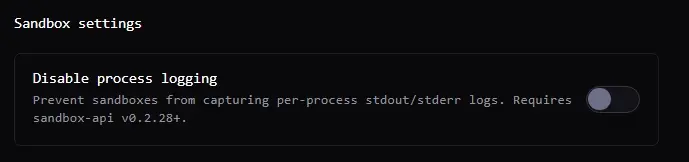 This only suppresses the structured telemetry export. You can still retrieve process logs via the SDK's `process.logs()` method and stream them in real-time.
## Process statuses
A process can have either of the following status:
* `running`
* `completed`
* `failed`
* `killed`
* `stopped`
This only suppresses the structured telemetry export. You can still retrieve process logs via the SDK's `process.logs()` method and stream them in real-time.
## Process statuses
A process can have either of the following status:
* `running`
* `completed`
* `failed`
* `killed`
* `stopped`