> ## Documentation Index
> Fetch the complete documentation index at: https://docs.blaxel.ai/llms.txt
> Use this file to discover all available pages before exploring further.
# Workspaces, users and roles
> Manage Blaxel workspaces, invite users, assign roles, and configure access control to share resources securely across your organization.
All resources on Blaxel are logically regrouped in an **account**, which is the highest possible level of tenancy. An account can have **multiple workspaces** — a common pattern when dealing with multiple environments (e.g. development vs. production), business units, or end-clients.
Users can be either [team members](/Security/Workspace-access-control), or [service accounts](/Security/Service-accounts) that represent external systems that can operate Blaxel. They are added to a workspace with certain permissions on the workspace resources inherited from their role.
## Workspace name
The workspace name (called `name` in the Blaxel API) uniquely identifies your workspace. You set it when the workspace is created. Once set, it cannot be changed. The workspace name appears at the bottom of the left sidebar in the Blaxel Console.
Each workspace also has a display name for better organization, which workspace admins can modify.
## User roles
There are two roles that a user or service account can have in a workspace: **admin** and **member**.
Admins have **complete access** in the workspace, on all workspace resources. They can also modify all workspace settings, including inviting other team members. More specifically, admins have all the permissions that members have, in addition to:
* creating and editing policies
* inviting and removing users
* changing user's permissions
* adding and removing integrations
* changing the workspace name
* deleting the workspace
Members can view the workspace settings but not edit them. They are also able to **view and modify** the following resources inside a workspace (including querying them when applicable):
* [agents](../Agents/Overview)
* [MCP servers](../Functions/Overview)
* [model APIs](../Models/Model-deployment)
* [batch jobs](../Jobs/Overview)
* [sandboxes](../Sandboxes/Overview)
They have read-only access on the following resources:
* [policies](../Model-Governance/Policies)
## Shared account settings
A Blaxel account is the top-level entity that owns one or more workspaces. The following are managed at the account level and are **shared across all workspaces** in an account:
* Quota tier and limits
* Credits
* SSO/SAML configuration
* Usage analytics
This means that resource usage in any workspace draws from the common credit balance and counts toward the same quotas. See the [usage and quotas documentation](./Quotas) for more information.
## Create a workspace
Workspaces can be created, managed, and deleted using the Blaxel Console and the Blaxel SDKs.
### Blaxel Console
To create a new workspace using the Blaxel Console:
* Click the workspace name at the bottom left corner.
* In the rollout menu, click **Switch** > **+**.
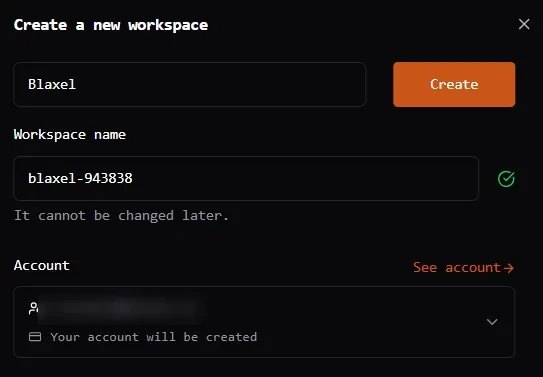
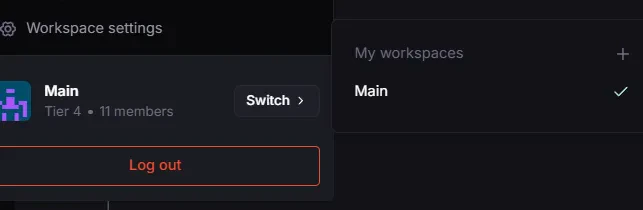 * In the **Create a new workspace** dialog, enter a workspace name and label.
* Click **Create** to create the workspace.
* In the **Create a new workspace** dialog, enter a workspace name and label.
* Click **Create** to create the workspace.
 ### Blaxel SDKs
```typescript TypeScript theme={null}
import { createWorkspace } from "@blaxel/core";
const { data: newWs } = await createWorkspace({
body: {
name: "my-workspace",
displayName: "My Workspace",
region: "us-west-2",
},
});
console.log(newWs);
```
```python Python theme={null}
import asyncio
from blaxel.core.common import autoload
from blaxel.core.client import client
from blaxel.core.client.api.workspaces import create_workspace
from blaxel.core.client.models.workspace import Workspace
autoload()
async def main():
new_ws = await create_workspace.asyncio(
client=client,
body=Workspace(
name="my-workspace",
display_name="My Workspace",
region="us-west-2",
),
)
print(new_ws)
asyncio.run(main())
```
## Delete a workspace
Deleting a workspace is permanent and cannot be undone.
### Blaxel Console
To delete a workspace using the Blaxel Console:
* Click the workspace name at the bottom left corner.
* Click **Workspace settings**.
* Review the information and click **Delete workspace** to delete the workspace.
### Blaxel SDKs
```typescript TypeScript theme={null}
import { createWorkspace } from "@blaxel/core";
const { data: newWs } = await createWorkspace({
body: {
name: "my-workspace",
displayName: "My Workspace",
region: "us-west-2",
},
});
console.log(newWs);
```
```python Python theme={null}
import asyncio
from blaxel.core.common import autoload
from blaxel.core.client import client
from blaxel.core.client.api.workspaces import create_workspace
from blaxel.core.client.models.workspace import Workspace
autoload()
async def main():
new_ws = await create_workspace.asyncio(
client=client,
body=Workspace(
name="my-workspace",
display_name="My Workspace",
region="us-west-2",
),
)
print(new_ws)
asyncio.run(main())
```
## Delete a workspace
Deleting a workspace is permanent and cannot be undone.
### Blaxel Console
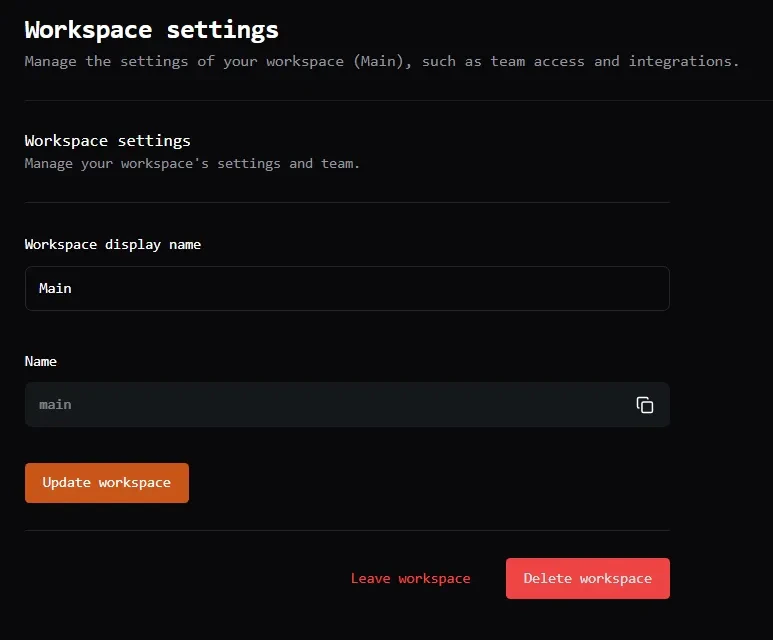
To delete a workspace using the Blaxel Console:
* Click the workspace name at the bottom left corner.
* Click **Workspace settings**.
* Review the information and click **Delete workspace** to delete the workspace.
 ### Blaxel SDKs
```typescript TypeScript theme={null}
import { deleteWorkspace } from "@blaxel/core";
const { data: deleted } = await deleteWorkspace({
path: {
workspaceName: "my-workspace",
},
});
console.log(deleted);
```
```python Python theme={null}
import asyncio
from blaxel.core.common import autoload
from blaxel.core.client import client
from blaxel.core.client.api.workspaces import delete_workspace
autoload()
async def main():
deleted = await delete_workspace.asyncio(
workspace_name="my-workspace",
client=client,
)
print(deleted)
asyncio.run(main())
```
## Invite a member
Admins can invite team members via their email address. They will be prompted for the role to give the user.
To invite a team member:
* Click **Workspace** > **Team**.
* Click **Invite user**.
* Enter the invitee's email address and role.
### Blaxel SDKs
```typescript TypeScript theme={null}
import { deleteWorkspace } from "@blaxel/core";
const { data: deleted } = await deleteWorkspace({
path: {
workspaceName: "my-workspace",
},
});
console.log(deleted);
```
```python Python theme={null}
import asyncio
from blaxel.core.common import autoload
from blaxel.core.client import client
from blaxel.core.client.api.workspaces import delete_workspace
autoload()
async def main():
deleted = await delete_workspace.asyncio(
workspace_name="my-workspace",
client=client,
)
print(deleted)
asyncio.run(main())
```
## Invite a member
Admins can invite team members via their email address. They will be prompted for the role to give the user.
To invite a team member:
* Click **Workspace** > **Team**.
* Click **Invite user**.
* Enter the invitee's email address and role.
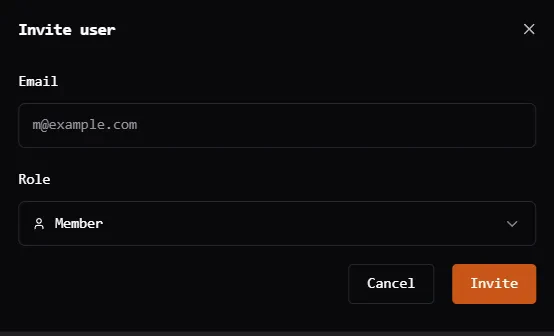 The invitee will receive an email to allow them to accept the invitation on Blaxel console. They will not be able to access workspace resources until they have manually accepted the invitation. If the user doesn't have a Blaxel account already, they will be asked to sign up first.
Invitations to other workspaces are visible from your profile.
The invitee will receive an email to allow them to accept the invitation on Blaxel console. They will not be able to access workspace resources until they have manually accepted the invitation. If the user doesn't have a Blaxel account already, they will be asked to sign up first.
Invitations to other workspaces are visible from your profile.