

Prerequisites
Before starting, ensure you have:- a Blaxel account
- an API key from any of the supported model providers
- a Python development environment
Create a sandbox
-
Download and install the Blaxel CLI and log in to your Blaxel account:
-
In a new directory, install the Blaxel Python SDK (there’s also a TypeScript SDK):
-
Create a script named
main.pyin the same directory:This script:- creates a new Blaxel sandbox named
openclaw-sandboxusing Blaxel’s Node.js base image; - opens the sandbox port 18789, which OpenClaw uses for WebSocket and HTTP connections;
- creates a preview URL for the service running on that port; and
- creates an access token for the preview URL, valid for 24 hours.
- creates a new Blaxel sandbox named
-
Run the script to create the sandbox and preview URL:
Once complete, the script displays the generated preview URL (for example,
https://b186....preview.bl.run) and preview URL access token (for example,cbba622560db78e...). Note these values, as you will require them in subsequent steps.
Install and configure OpenClaw
-
Connect to the Blaxel sandbox terminal:
-
Execute the following commands to install OpenClaw in the sandbox:
For detailed installation instructions, refer to the OpenClaw documentation.
-
Configure OpenClaw:
Read and accept the security warning to proceed. Select the Quickstart mode to proceed. You will be prompted for more information, including choosing a model provider, channels, skills and hooks. At minimum, you must select a model provider and model and enter the required API key. All other steps are optional and can be skipped if you don’t have the details yet.
-
Once the configuration process is complete, OpenClaw will display status output. This will usually include a message that
systemdservices are unavailable. This is expected as, for performance reasons, Blaxel sandboxes do not include thesystemdprocess manager. -
The status output also displays a tokenized dashboard link. Note the dashboard token (for example,
e782efff66...), as it will be required in the next step.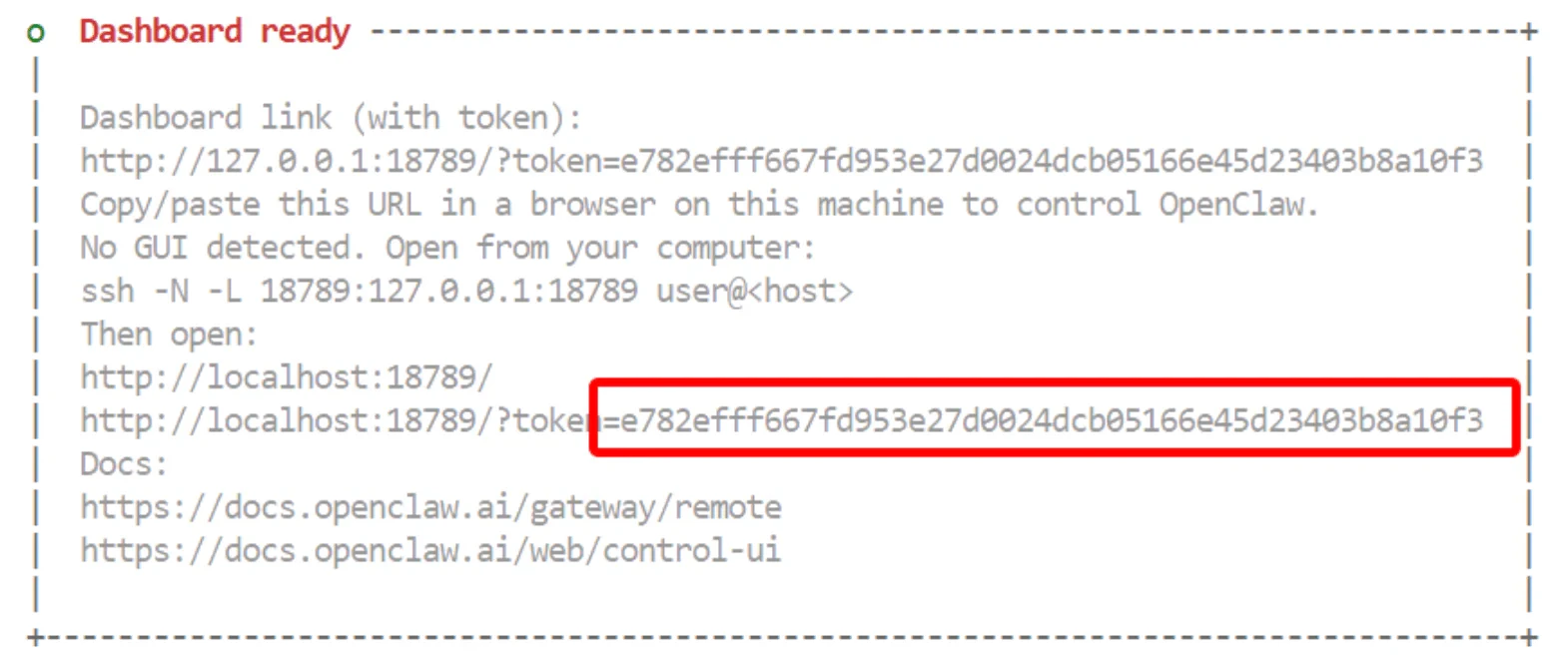
Configure OpenClaw Gateway access
-
Edit the OpenClaw configuration file at
/blaxel/.openclaw/openclaw.jsonand add the preview URL to the list of allowed origins:An alternative way to do this is withjq: -
Start the OpenClaw Gateway service manually, and keep it running.
Confirm that you see log messages like the ones below about the Gateway service starting and listening for requests:IMPORTANT: This is the OpenClaw Gateway process. Make sure that it is running for the rest of these instructions.
-
Browse to the sandbox preview URL, remembering to also include the preview URL access token in the URL string - for example,
https://b186....preview.bl.run?bl_preview_token=cbba.... This displays the OpenClaw Control UI. -
Navigate to the Overview page and enter the dashboard token in the Gateway Token field.
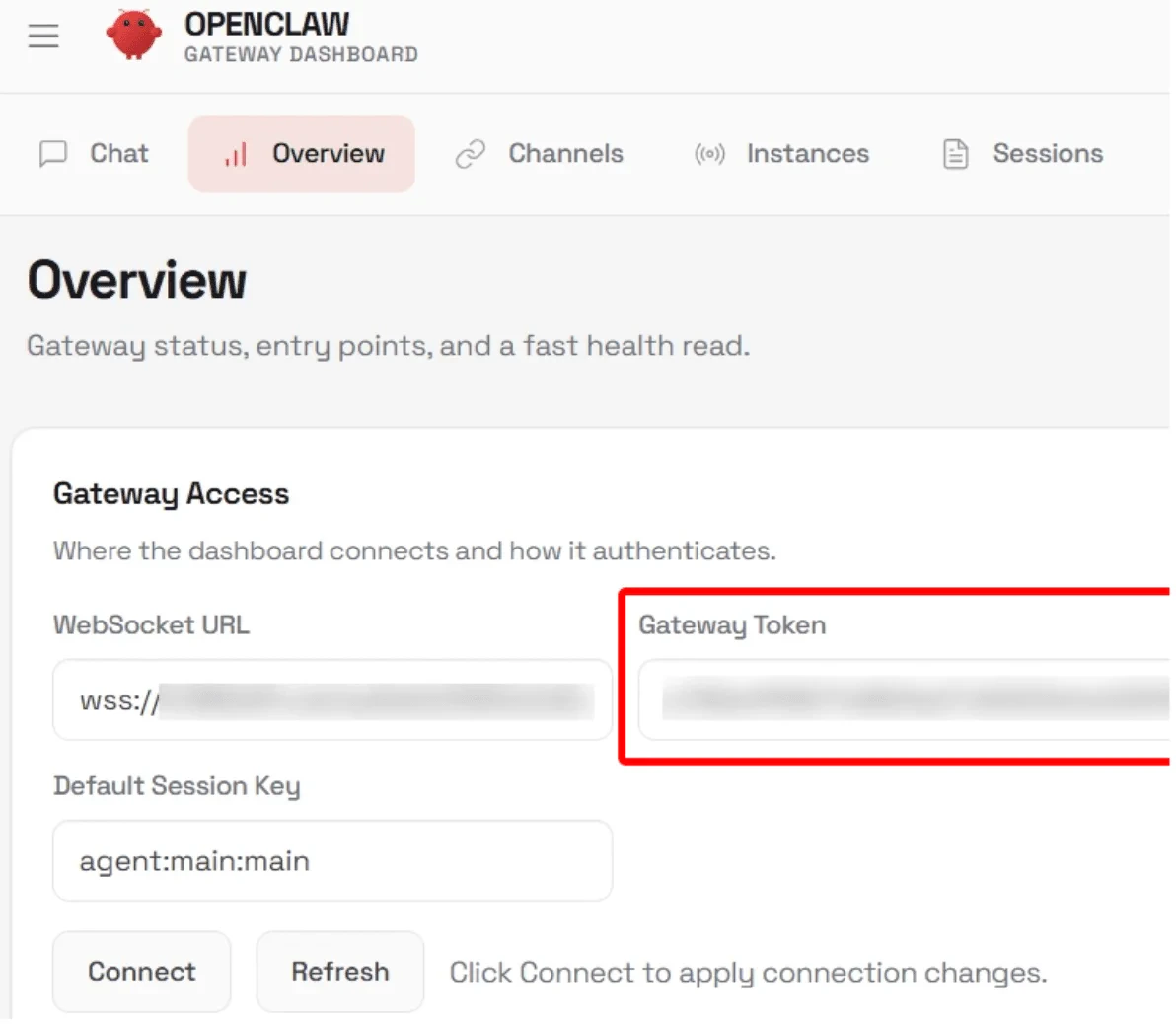
-
The Control UI also displays the error
pairing required. This is because the OpenClaw Gateway requires a one-time pairing approval for connections from a new browser/device.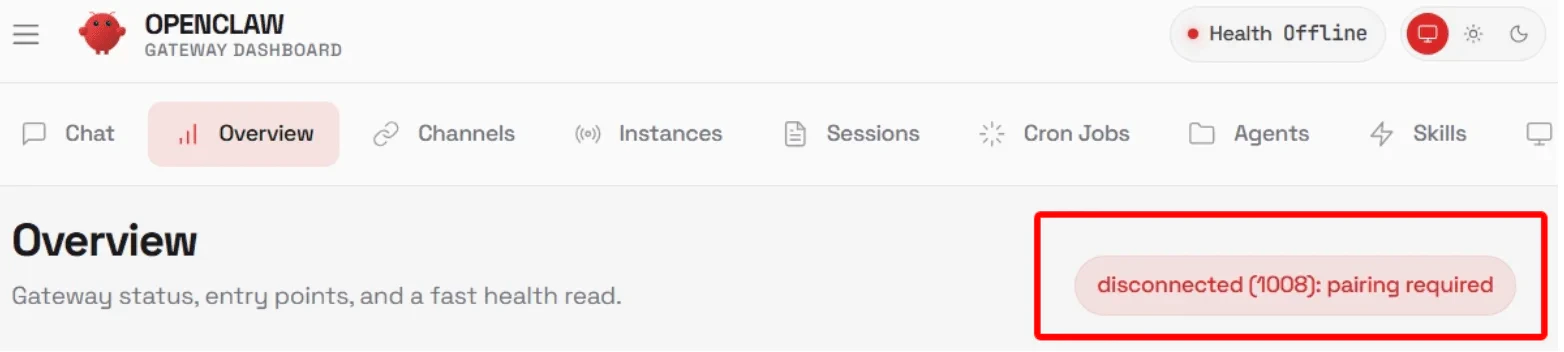
-
Connect to the sandbox terminal in a separate terminal window (to not kill the gateway process running):
-
List the available pairing requests:
-
Typically, there will only be one pending pairing request. Approve it using its request identifier:
-
Browse to the sandbox preview URL again. The Control UI should now be fully functional and ready to accept requests, verified by the health check in the top right corner.
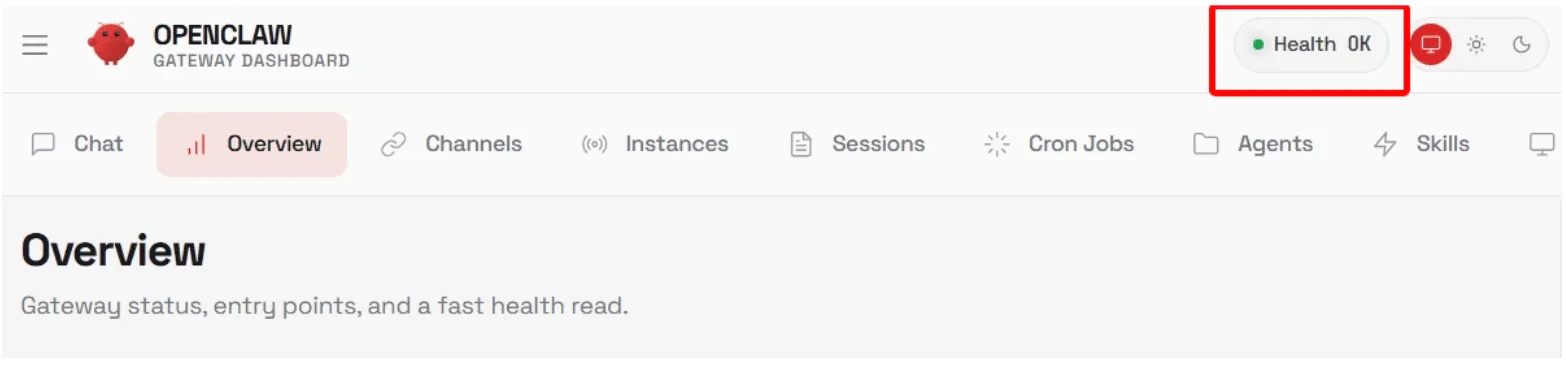
Test OpenClaw
Navigate to the Chat page, enter a prompt, and wait for a reply to confirm that the OpenClaw agent is working: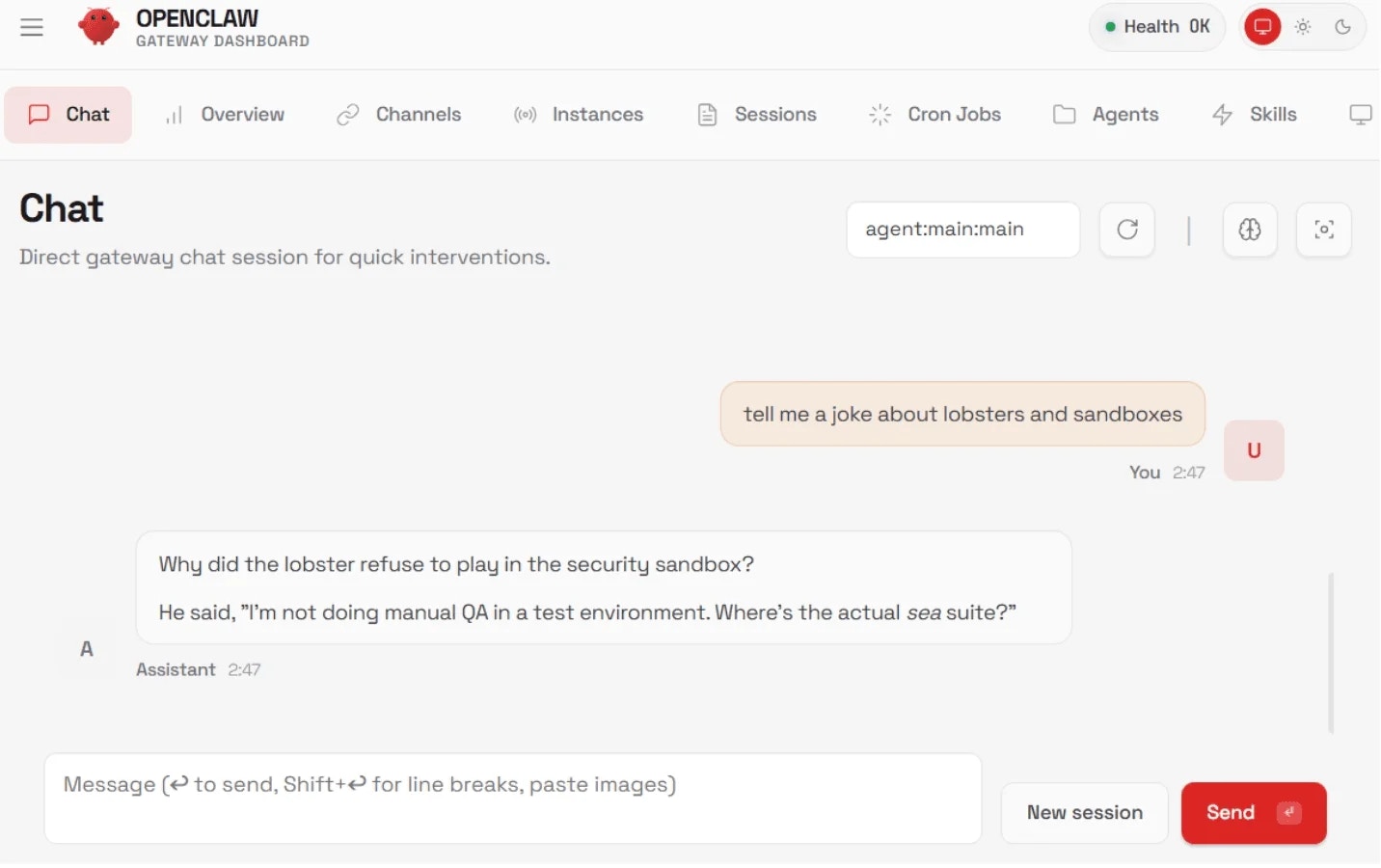
Configure OpenClaw channels
OpenClaw supports multiple channels. To enable them, configure them through the Control UI after connecting, or add them to theopenclaw.json file.
As mentioned earlier, the OpenClaw Gateway process must remain running while you interact with the agent. However, if you end your interactive shell session with the Blaxel sandbox, the Gateway process will terminate automatically as well. To keep the Gateway process running even if you’re not in an active shell session with the sandbox, create and execute the following script: