

Organization and account mapping
Each Baseten organization maps to one dedicated Blaxel workspace and one dedicated Blaxel account. The Blaxel account is created for the organization. It holds the managed workspace and its account-level settings, including usage, quotas, and billing. Blaxel creates a new account upon login. Your existing account, if you have one, is not used.A Baseten managed account can only contain its managed workspace. You cannot create another workspace in that account or delete the managed workspace from Blaxel.
Connect your organization
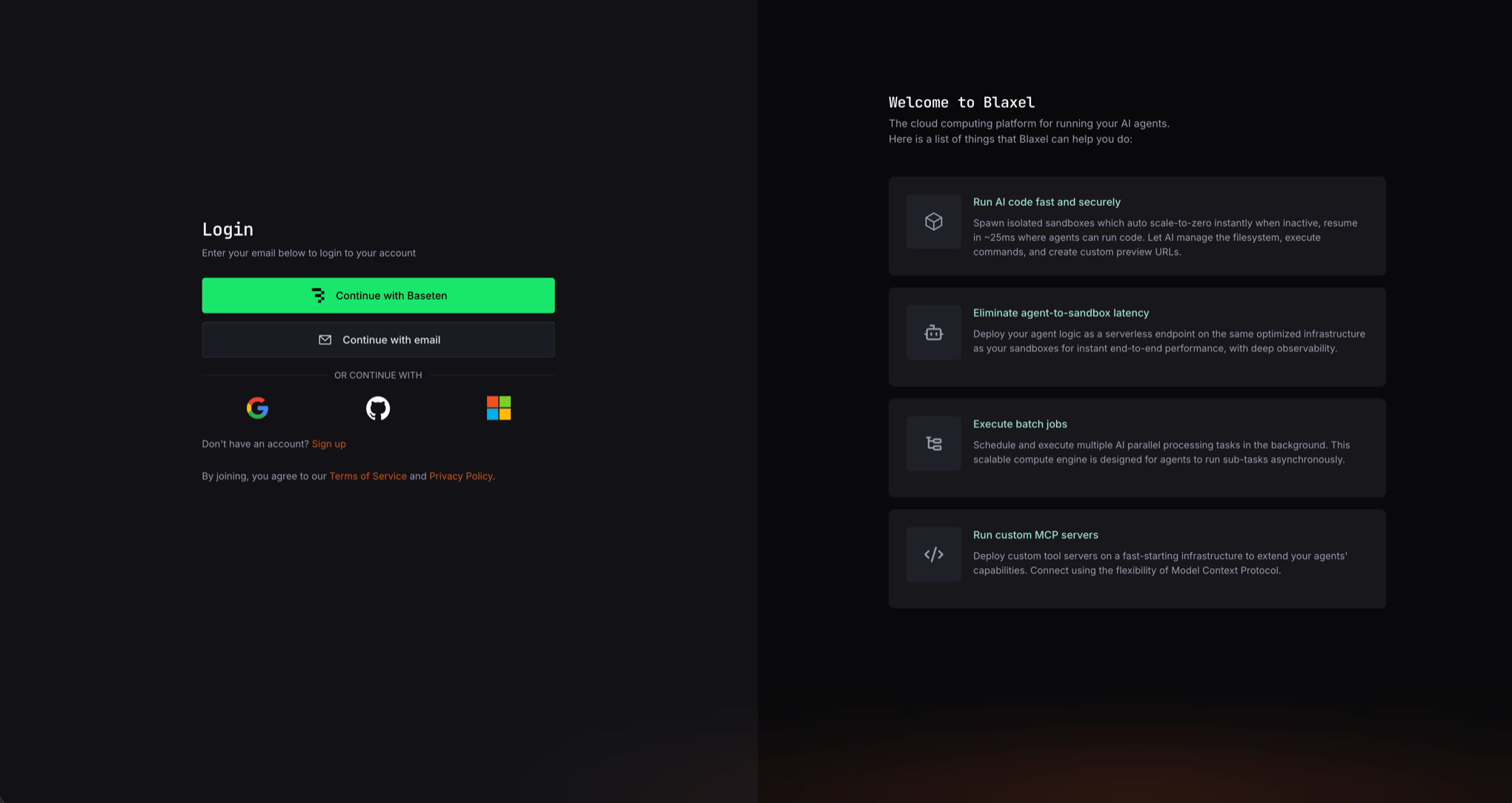
A Baseten organization admin must sign in once before anyone else in the organization can use Blaxel.- Open the Blaxel Console
- Select Continue with Baseten
- Sign in as a Baseten organization admin
Access and roles
Blaxel checks the user’s Baseten organization membership every time they sign in with Baseten. It grants the corresponding Blaxel workspace role and updates a role that changed in Baseten.
If a user joins a different Baseten organization, their next Baseten sign-in connects them to the new organization’s Blaxel workspace. Blaxel removes their access to any previous Baseten managed workspace during that sign-in.
Add members
Add people to the Baseten organization, not to the Blaxel workspace. Follow the Baseten access-control documentation to invite or change organization members.- Sign in to Baseten and add the user to your organization as an admin or creator
- Have the user open the Blaxel Console and select Continue with Baseten
Remove members
Remove the user from the Baseten organization first. Follow the Baseten access-control documentation to manage organization members. This prevents them from signing in to the managed workspace with Baseten, and Blaxel removes stale managed-workspace access if the user later attempts a Baseten sign-in. To complete offboarding immediately, manually delete the user’s Blaxel workspace access on the Blaxel side. This deletion is not an immediate reverse sync from Baseten. Managed workspace membership cannot be edited from the Blaxel Console, CLI, or API, so contact Blaxel support to remove the access manually. For standard Blaxel workspaces, see Remove a member.Manage the Blaxel account
The first Baseten admin to initialize the organization becomes the owner of its Blaxel account. That ownership is separate from the Baseten workspace role. Later Baseten admins receive Blaxel workspace admin access when they sign in, but they do not automatically become Blaxel account admins or replace the account owner. The Blaxel account owner can manage account-level settings and add Blaxel account admins when others need to manage those settings. Changing a user’s role or removing them in Baseten changes their workspace access on their next Baseten sign-in. It does not transfer Blaxel account ownership.Workspaces, users and roles
Learn about access control for standard Blaxel workspaces.
Quotas and usage
Review account-level quotas, credits, and usage analytics.